
 Rapixa · Android 1.1.8
How to add a date and location stamp to an existing Android photo
Start at step 1While writing yesterday’s cable-tray report, you find that the trays on two floors look identical. Stamping an old picture with today’s date would put it under the wrong visit.
Label the floor in a photo you already took
Check the time and floor in the inspection log. Open the original from your gallery, add those details, and save a separate copy for the report.
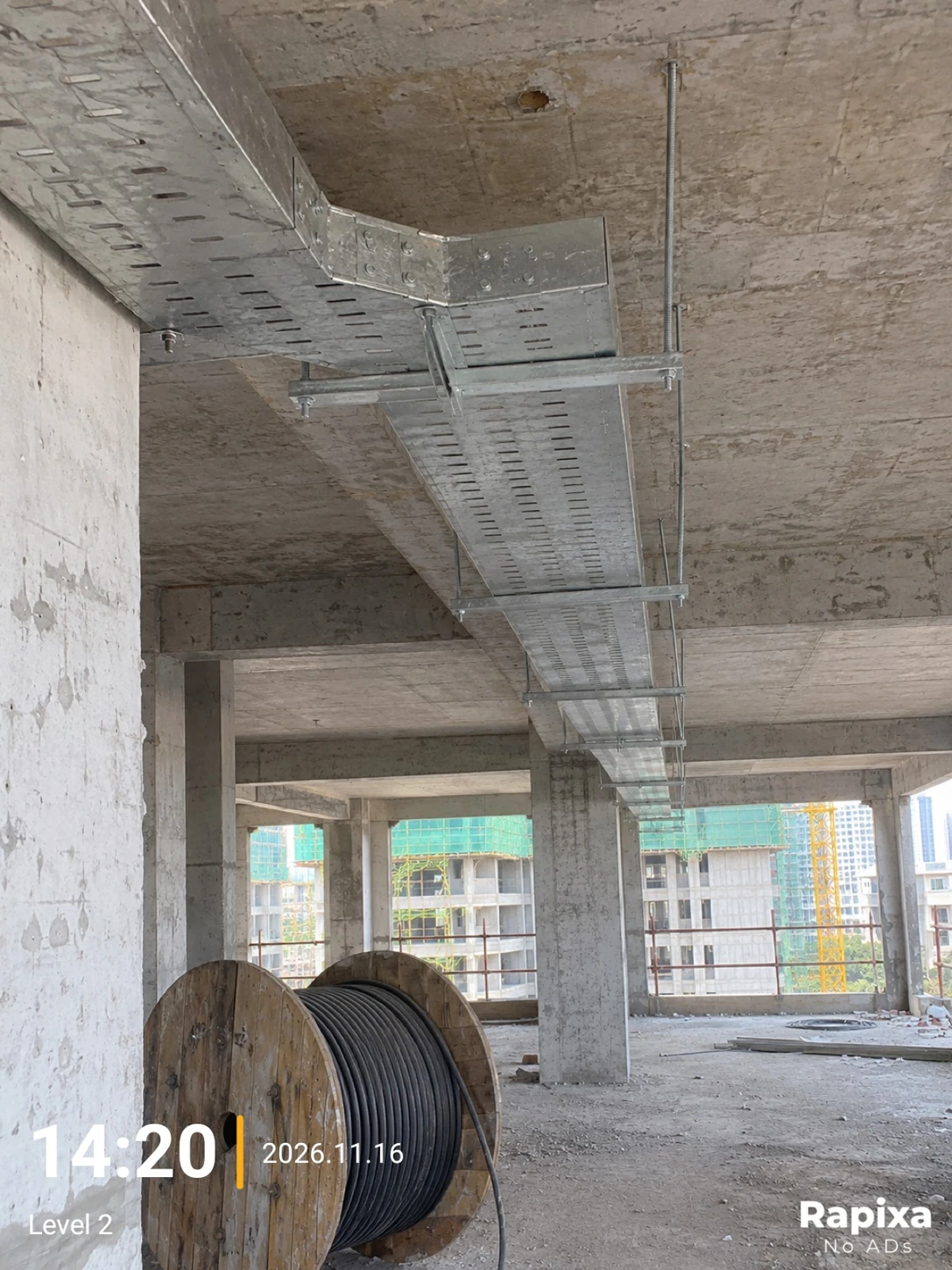
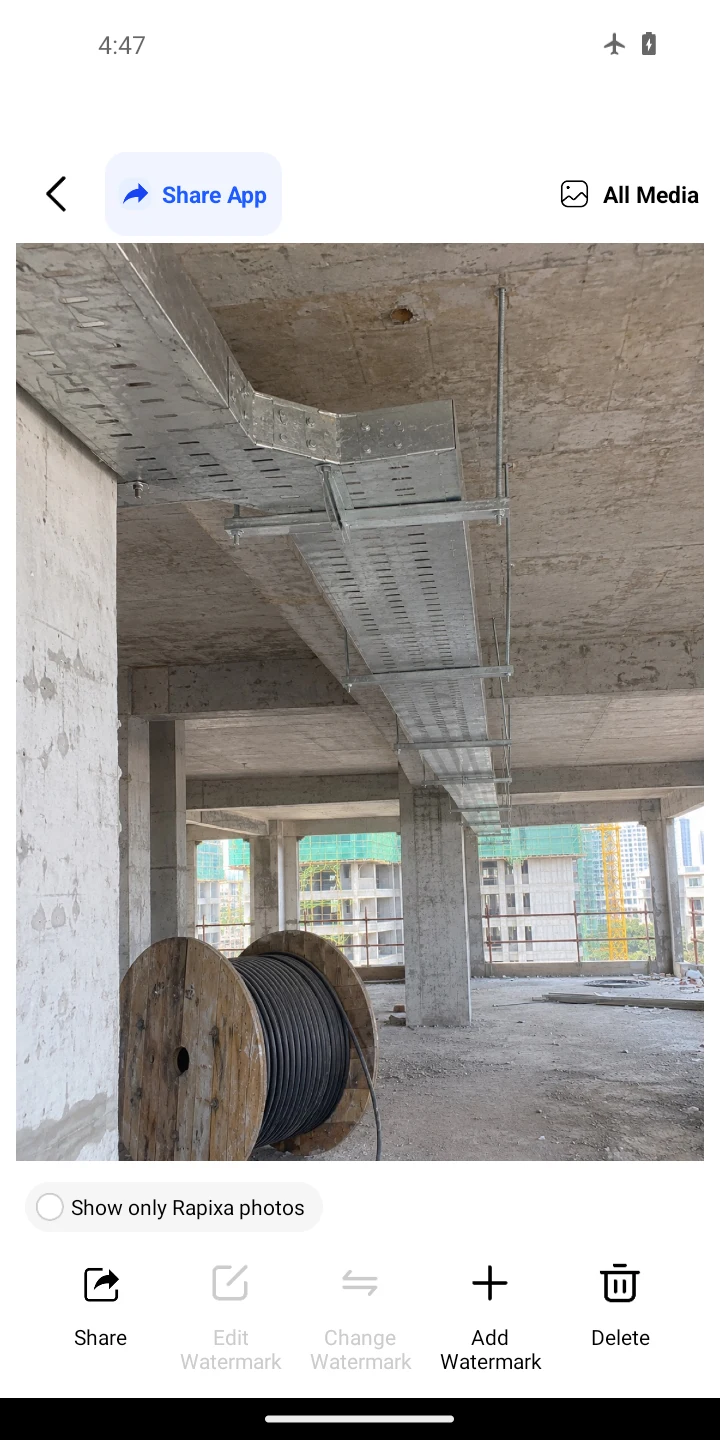
Open the original from your gallery
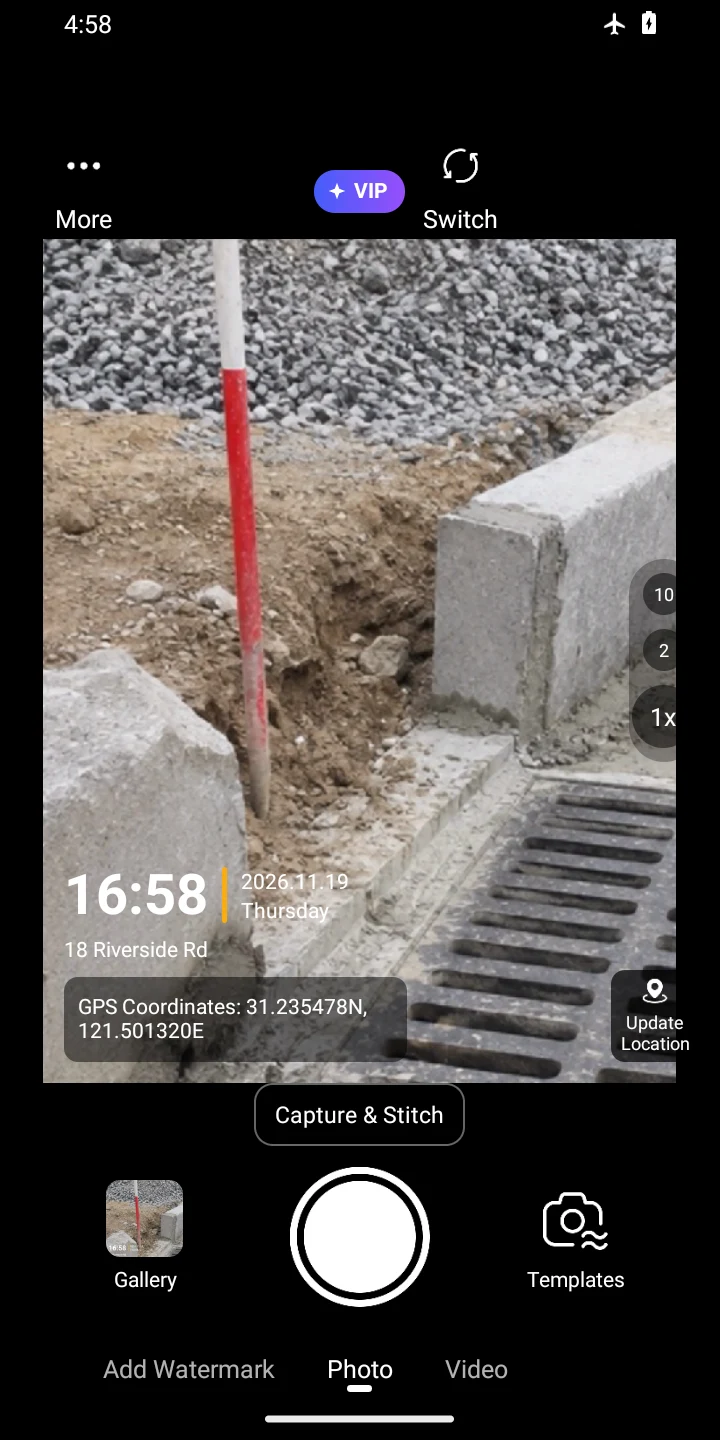
Tap Add Watermark below the camera, select the cable-tray photo and tap Add Watermark in its preview.
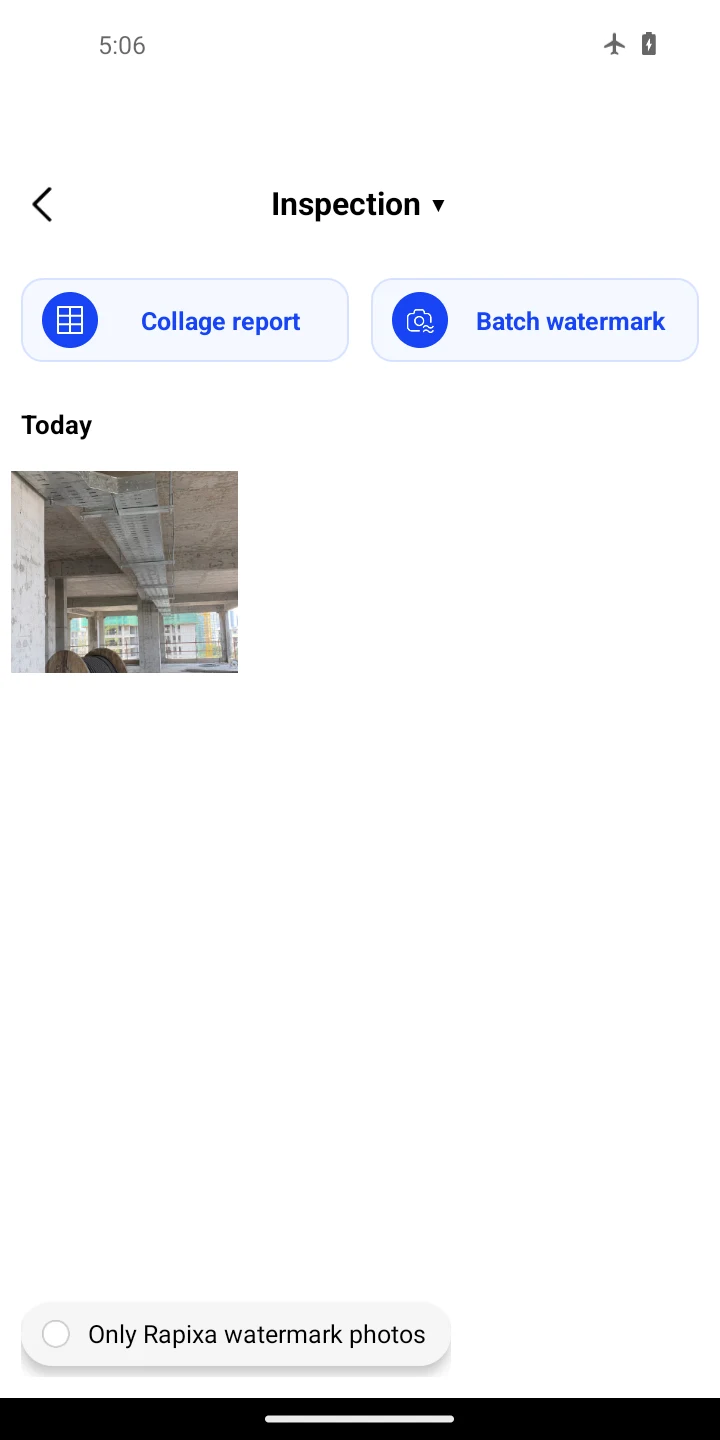
Missing the original? Tap the album name at the top, choose its folder and turn off “Only Rapixa watermark photos”. Inspection is the example album name. If editing is greyed out, use the plus button, Add Watermark.
Add Watermark 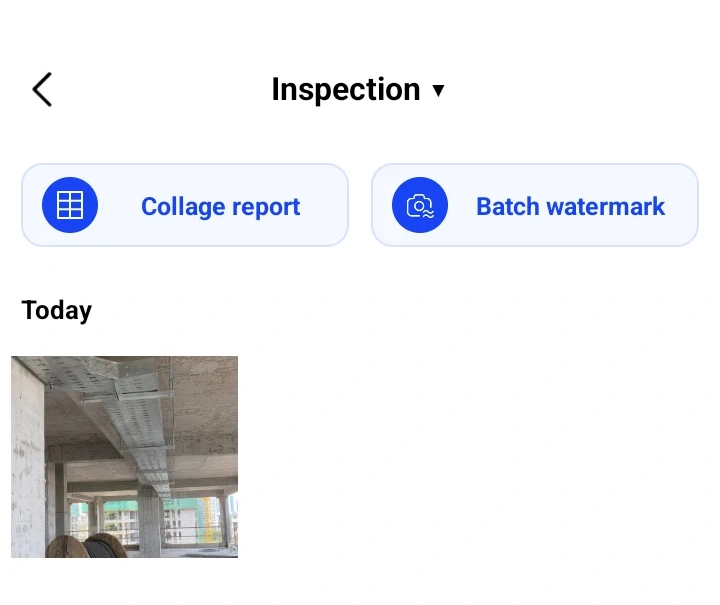
Add Watermark 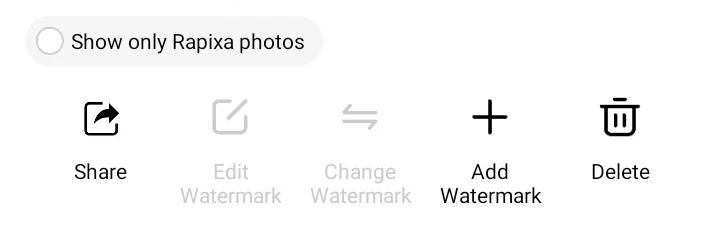
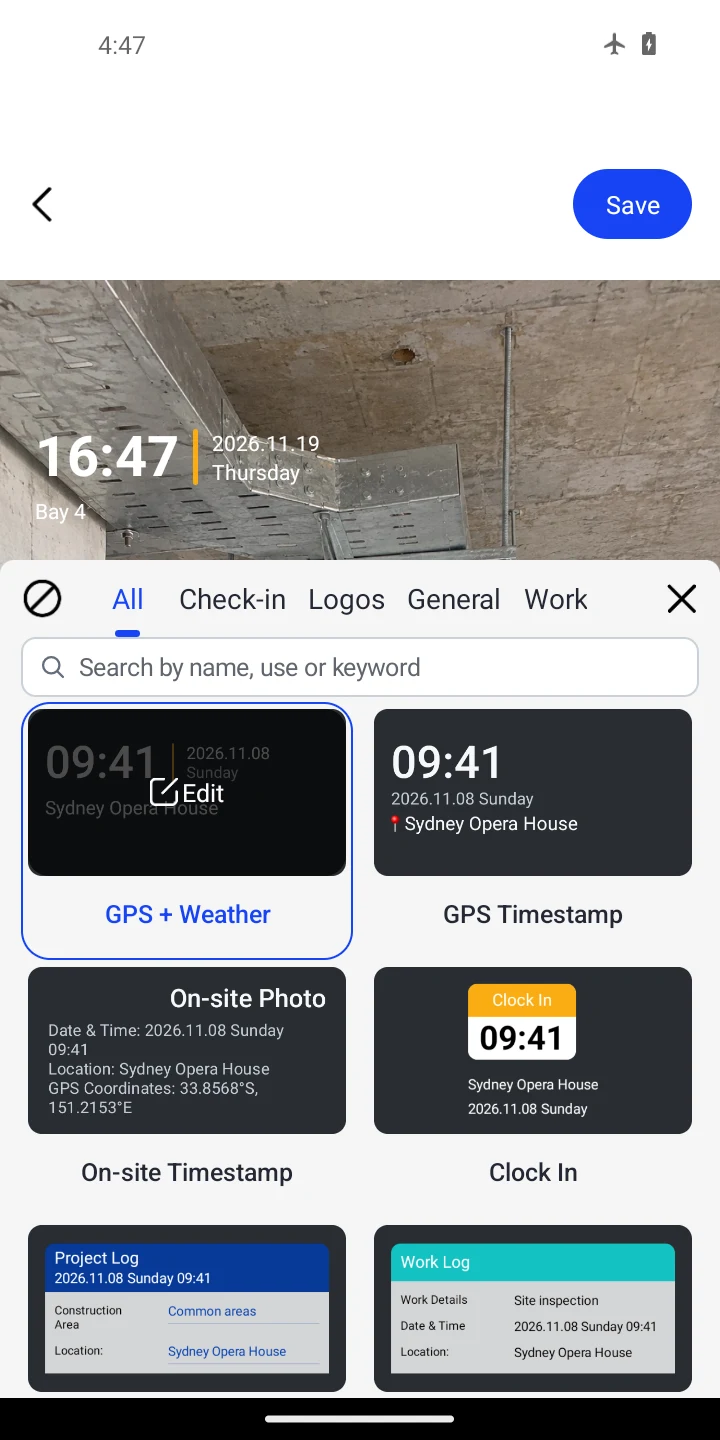
Add Watermark Choose a time and location template
In the template list, keep the selected time-and-location layout or choose one that shows both fields. Close the list to return to the photo.
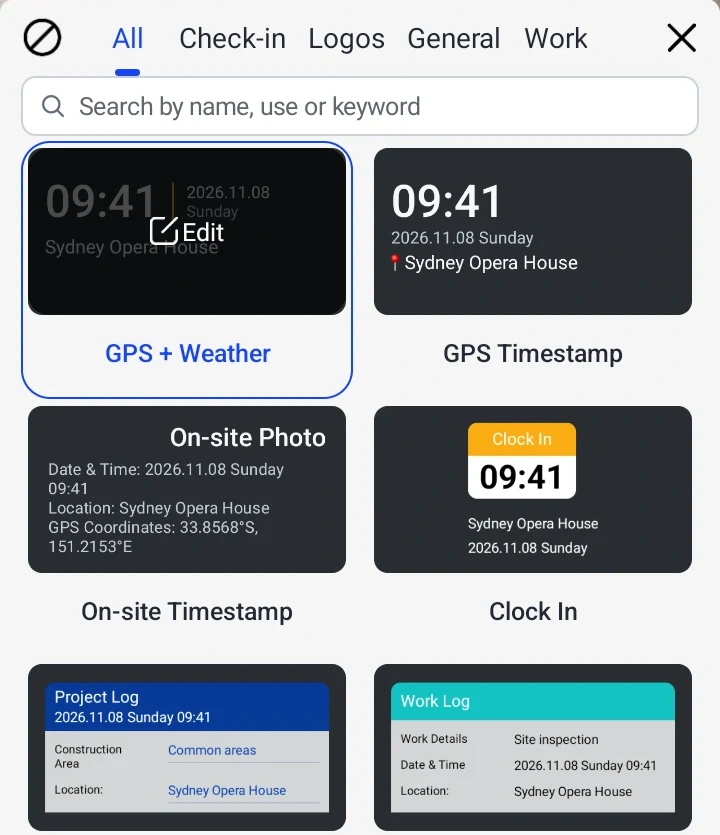
Enter the logged details and save
Tap the stamp on the photo. Set Date & Time from the inspection log (example: 2026.11.16 14:20). In Location, search for the floor and tap the matching custom result, such as Level 2. Close with ×, check the preview, then tap Save.
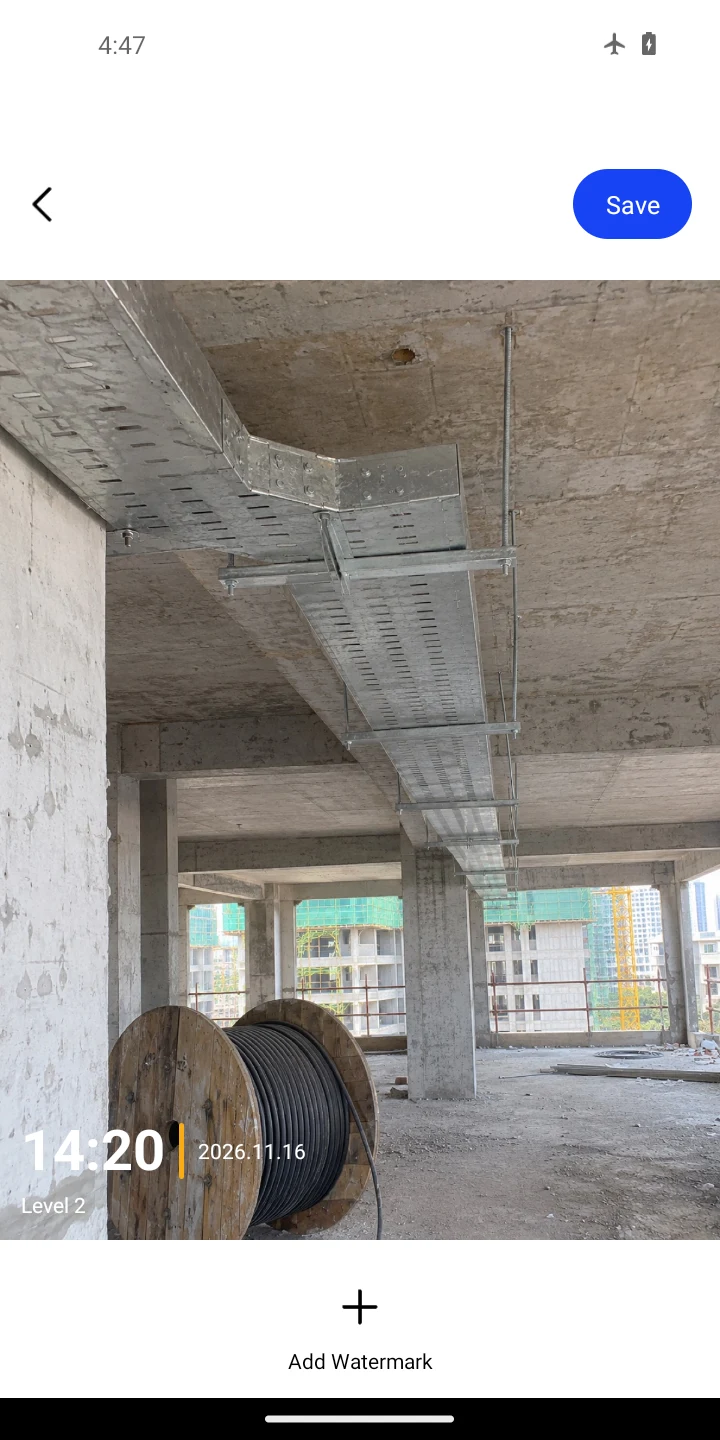
Compare the copy with the original
Open the new image in the gallery. Check that 14:20 and Level 2 are legible beside the tray, then open the original to confirm you still have the unstamped photo.
Example export. The date and location are demonstration values.
Before you send the file
If a date or floor cannot be verified, turn its field off in the editor. An empty field can still display an automatic value.
A photo without a reliable location needs a place you can confirm from the inspection record.